

We can't find the internet
Attempting to reconnect
Something went wrong!
Attempting to reconnect
Making Tax Digital — Filing UK VAT Returns from ERPNext
A step-by-step user guide for the Making Tax Digital app in ERPNext — connect to HMRC, configure VAT boxes, and submit UK VAT returns.
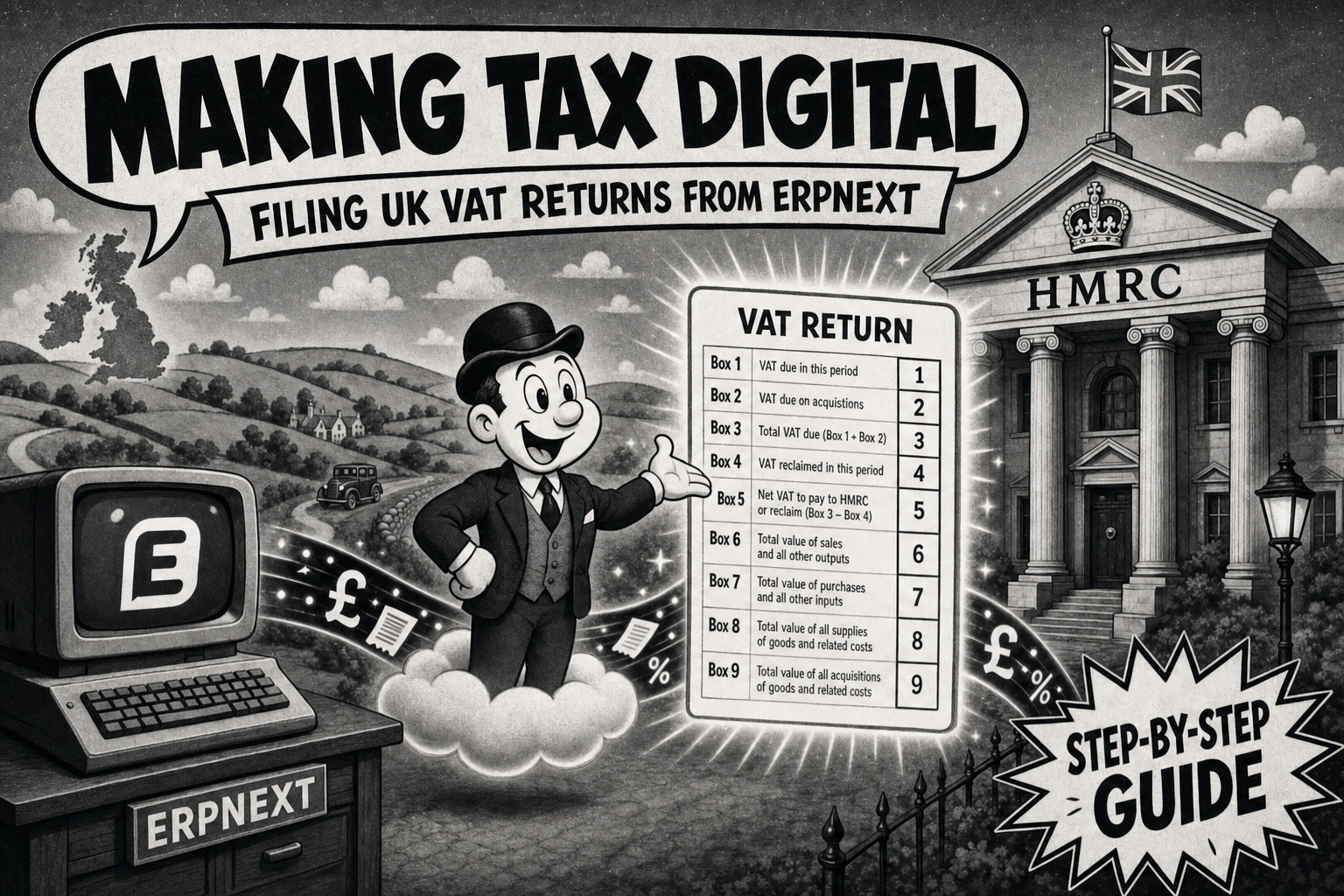
This guide explains how to use the Making Tax Digital app in ERPNext to file UK VAT returns to HMRC. It assumes you are familiar with ERPNext navigation (workspaces, list views, and forms) but are new to this app.
Table of Contents
- What this app does
- Before you begin
- Making Tax Digital workspace
- One-time site setup: Subscribe
- Per-company setup: Company MTD Setting
- Configure box filters
- Connect to HMRC
- Sync obligations
- Prepare a VAT return
- Review before submitting
- Submit to HMRC
- After submission
- Working with multiple companies
- Return status reference
- Checklists
- Support
1. What this app does
The Making Tax Digital app lets you:
- Subscribe your ERPNext site to the iMORPHr MTD Connector
- Connect each company’s VAT Registration Number to HMRC
- Map your General Ledger data to HMRC VAT return boxes
- Pull VAT obligations from HMRC into local return records
- Prepare, review, and submit VAT returns to HMRC
- Keep a submission receipt on each filed return
The typical filing journey is:
- Subscribe the site (one time)
- Set up each company and configure box filters
- Connect each company to HMRC
- Sync obligations
- Prepare the return
- Review the evidence
- Submit to HMRC
- Sync again later to see when HMRC marks the period as fulfilled
2. Before you begin
The following should already be in place before you use this app:
| Requirement | Detail |
|---|---|
| App installed | The Making Tax Digital app is installed on your ERPNext site |
| Your role | You have the System Manager role |
| Company records | Each company you will file for exists in ERPNext |
| VAT Registration Number | Each company’s VAT Registration Number is entered in the Tax ID field on the Company document |
| Posted transactions | Sales, purchases, and other transactions are posted to the General Ledger for the periods you will file |
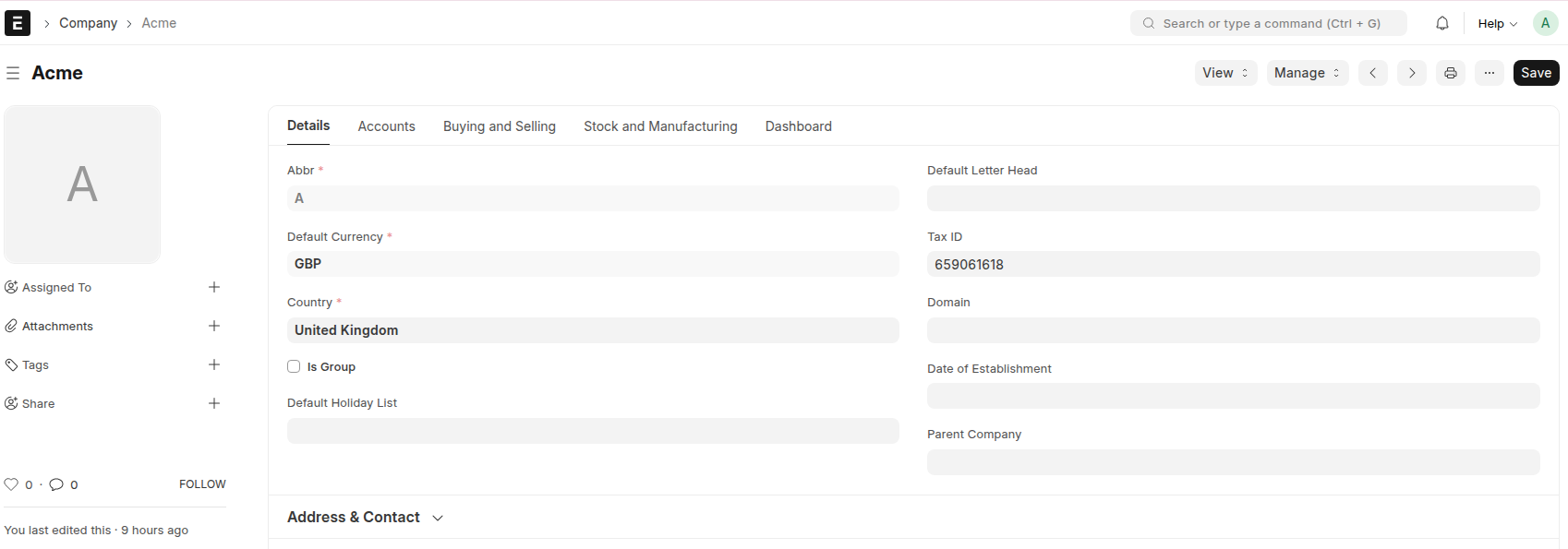
The Tax ID field on the Company form must contain the company’s VAT Registration Number. This value is used when connecting to HMRC and when filing returns.
3. Making Tax Digital workspace
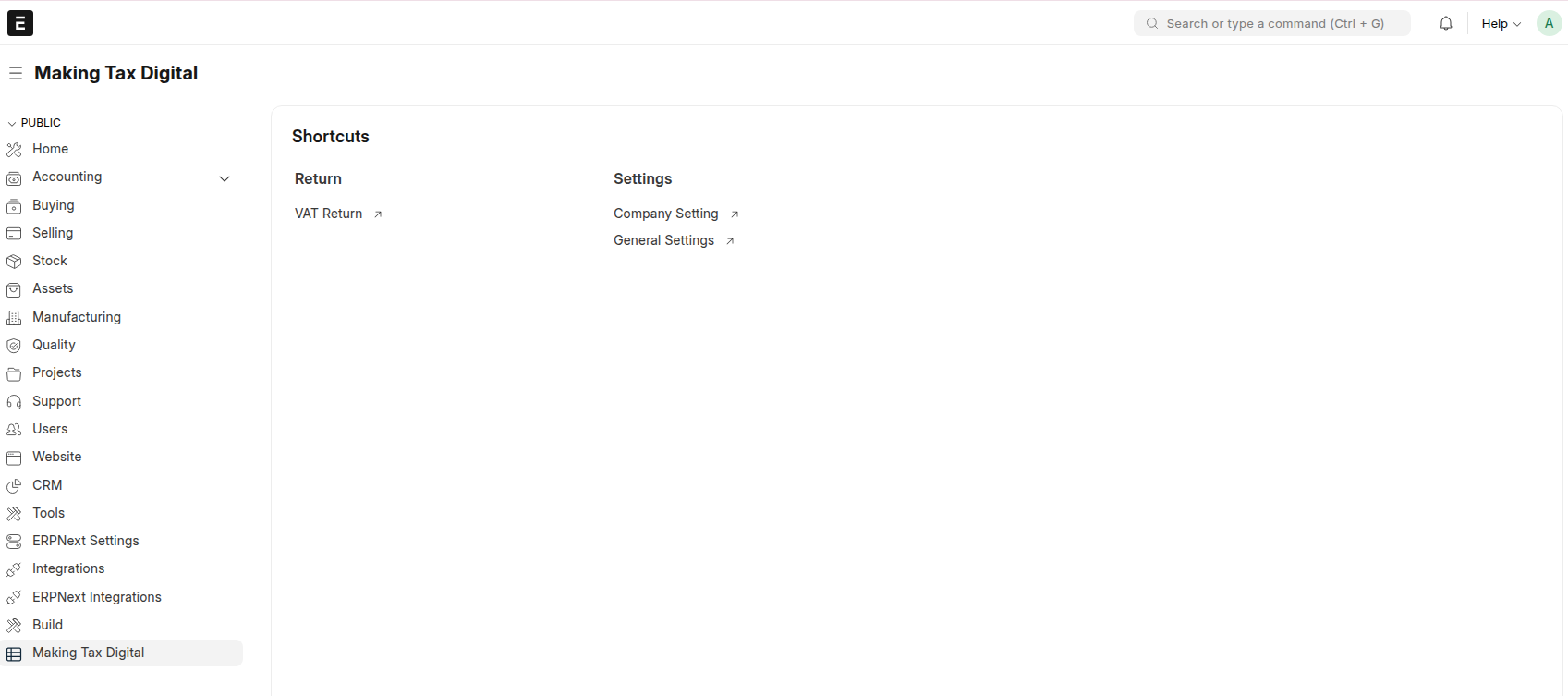
Open the Making Tax Digital workspace from the ERPNext desk. It provides shortcuts to the screens you will use most often:
| Shortcut | Opens |
|---|---|
| VAT Return | List of MTD VAT Return records (your filing periods) |
| General Settings | MTD General Settings (site subscription and sync settings) |
| Company Setting | Company MTD Setting list (per-company configuration) |
4. One-time site setup: Subscribe
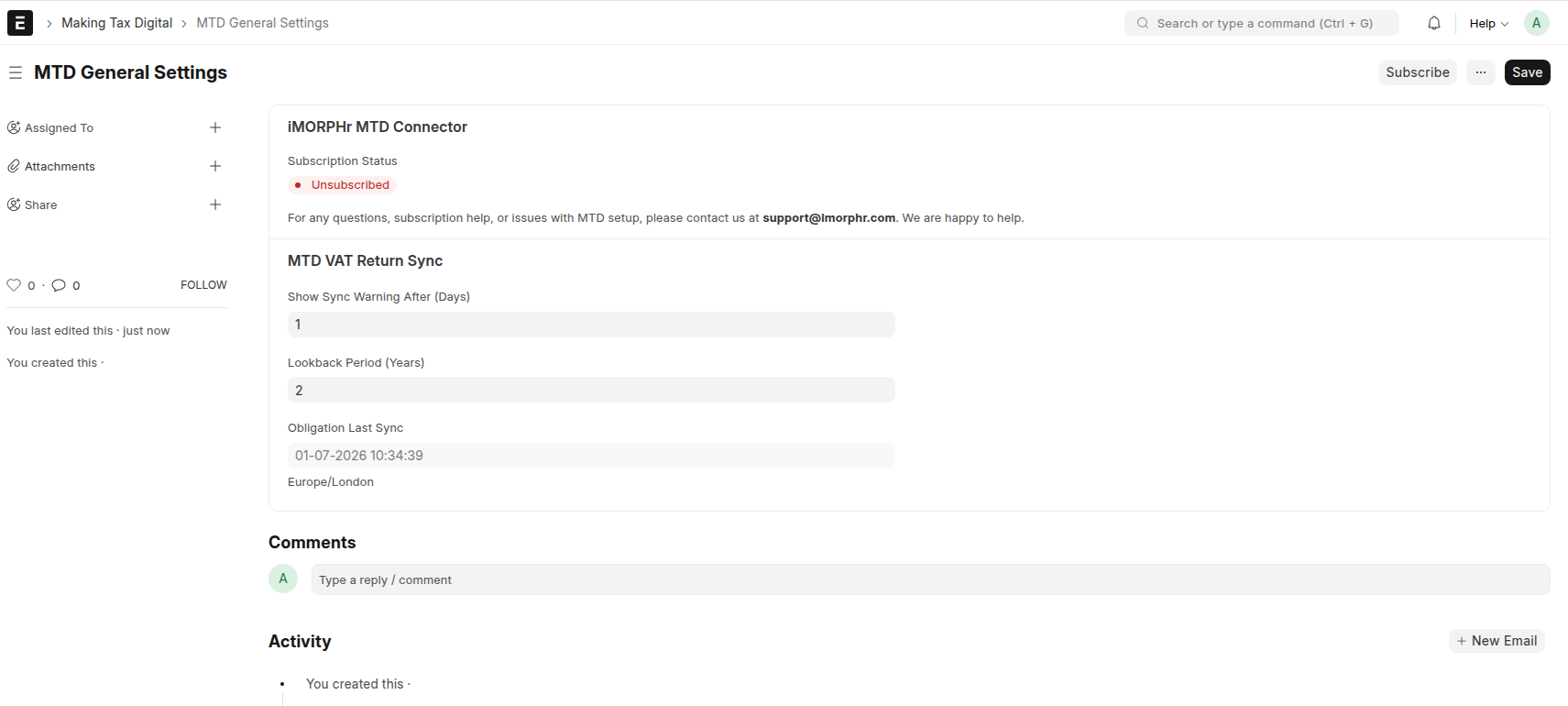
Subscription is done once per ERPNext site and covers all companies you file for. Open MTD General Settings from the workspace.
Subscribe
- On MTD General Settings, click Subscribe.
- In the subscribe dialog, select a plan and enter the quantity — the number of distinct VAT Registration Numbers (companies) you need to file for.
- Contact support@imorphr.com if you need help choosing a plan.
- Complete payment on the Stripe checkout page when redirected.
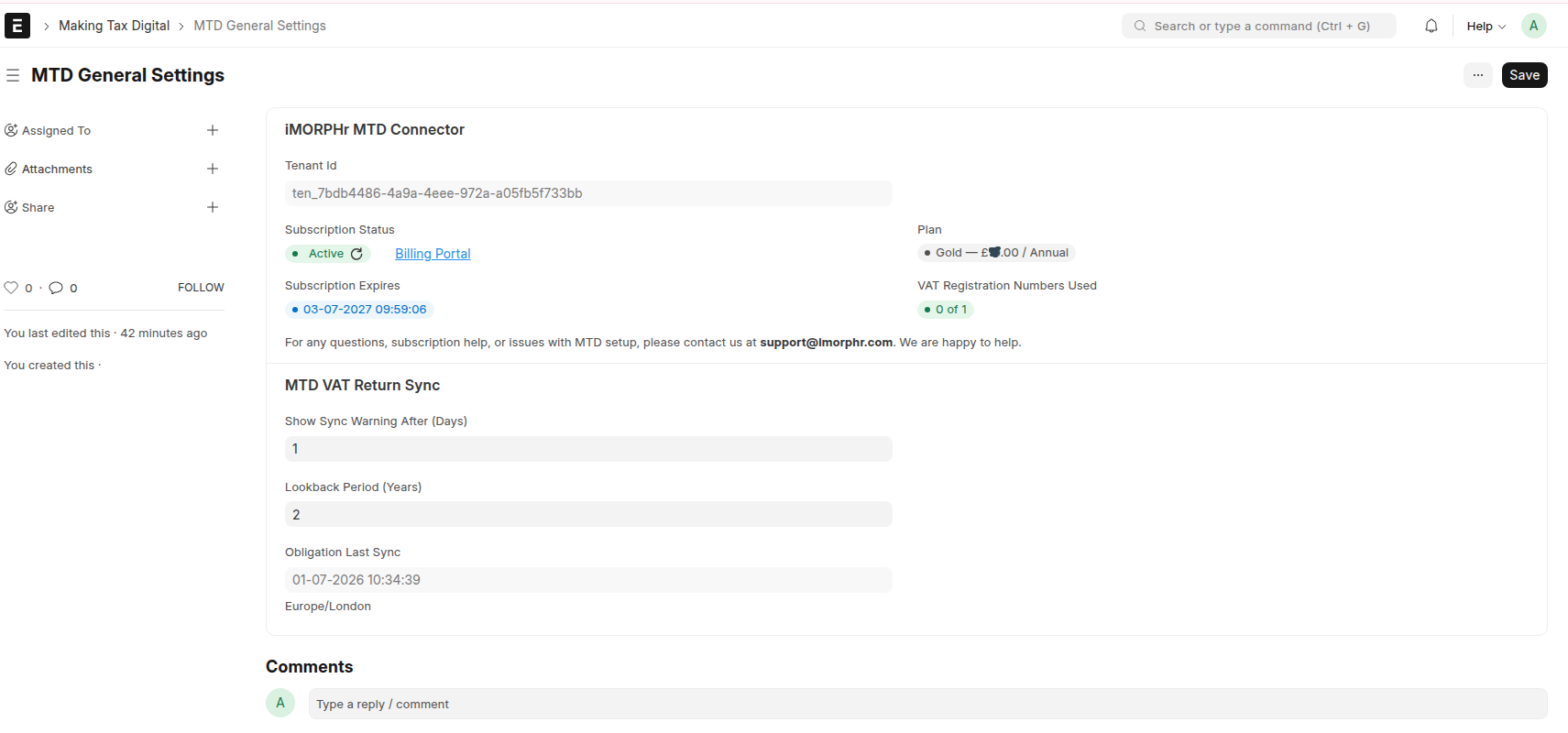
- After payment, you are returned to MTD General Settings. The subscription status should show as active.
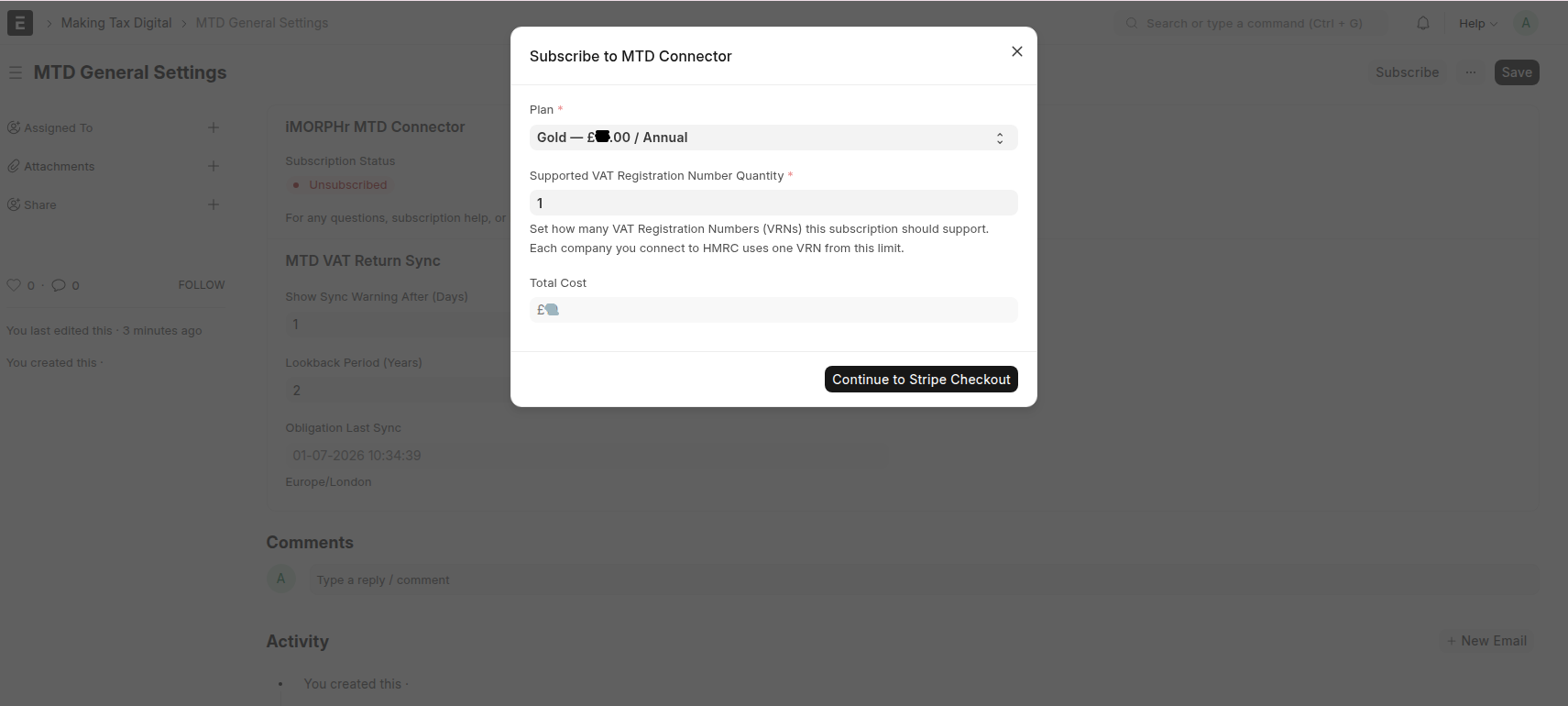
Tip: Purchase a quantity equal to the number of different VAT Registration Numbers / companies you will connect to HMRC and file for.
Billing Portal
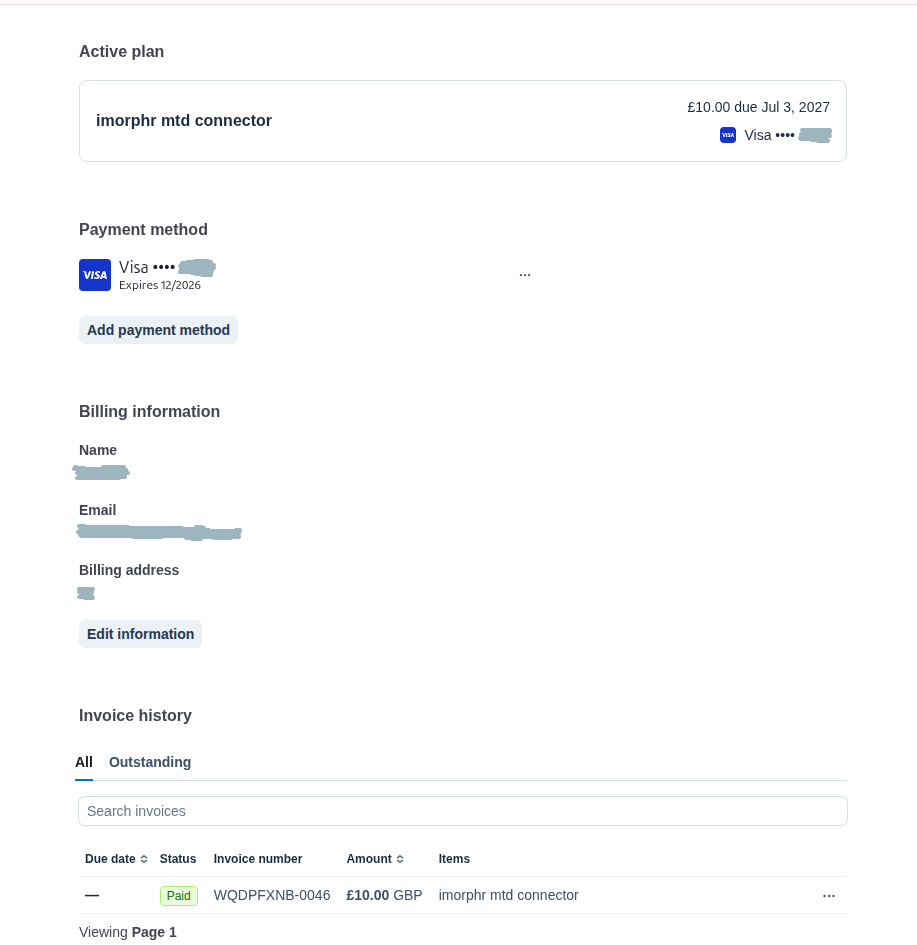
When your subscription is active, a Billing Portal link appears on MTD General Settings. Use it to:
- Update your payment method
- View billing history
- Cancel your plan
Obligation sync settings
The MTD VAT Return Sync section on MTD General Settings controls how obligations are fetched from HMRC:
| Field | Purpose |
|---|---|
| Lookback Period (Years) | How many years back to fetch obligations when you sync (default: 2) |
| Show Sync Warning After (Days) | After this many days since the last successful sync, the Sync Now button on the VAT Return list is highlighted as a reminder (default: 1) |
You can adjust the lookback period and warning days to suit your business.
5. Per-company setup: Company MTD Setting
Each company you file for needs its own Company MTD Setting record.
- From the workspace, open Company Setting.
- Click New.
- Select the Company.
- Save the document.
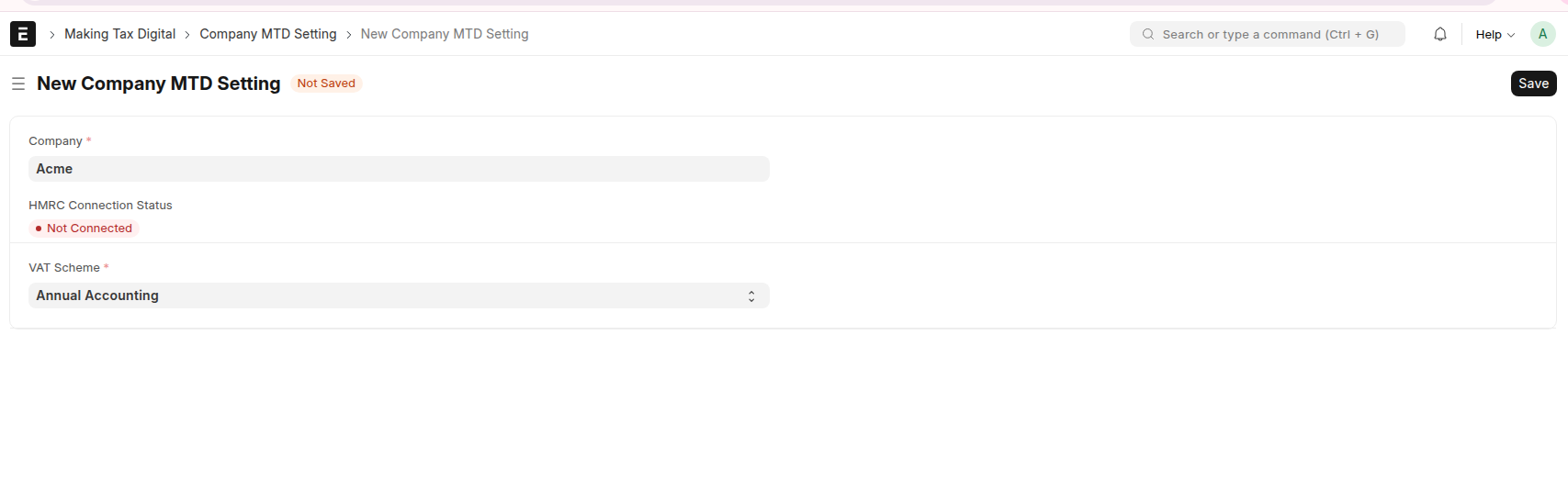
After saving, the Box Setup section appears with a table of all nine HMRC VAT boxes. Boxes that pull data from your General Ledger have an edit icon. Calculated boxes (Box 3 and Box 5) show a formula and cannot be edited directly.
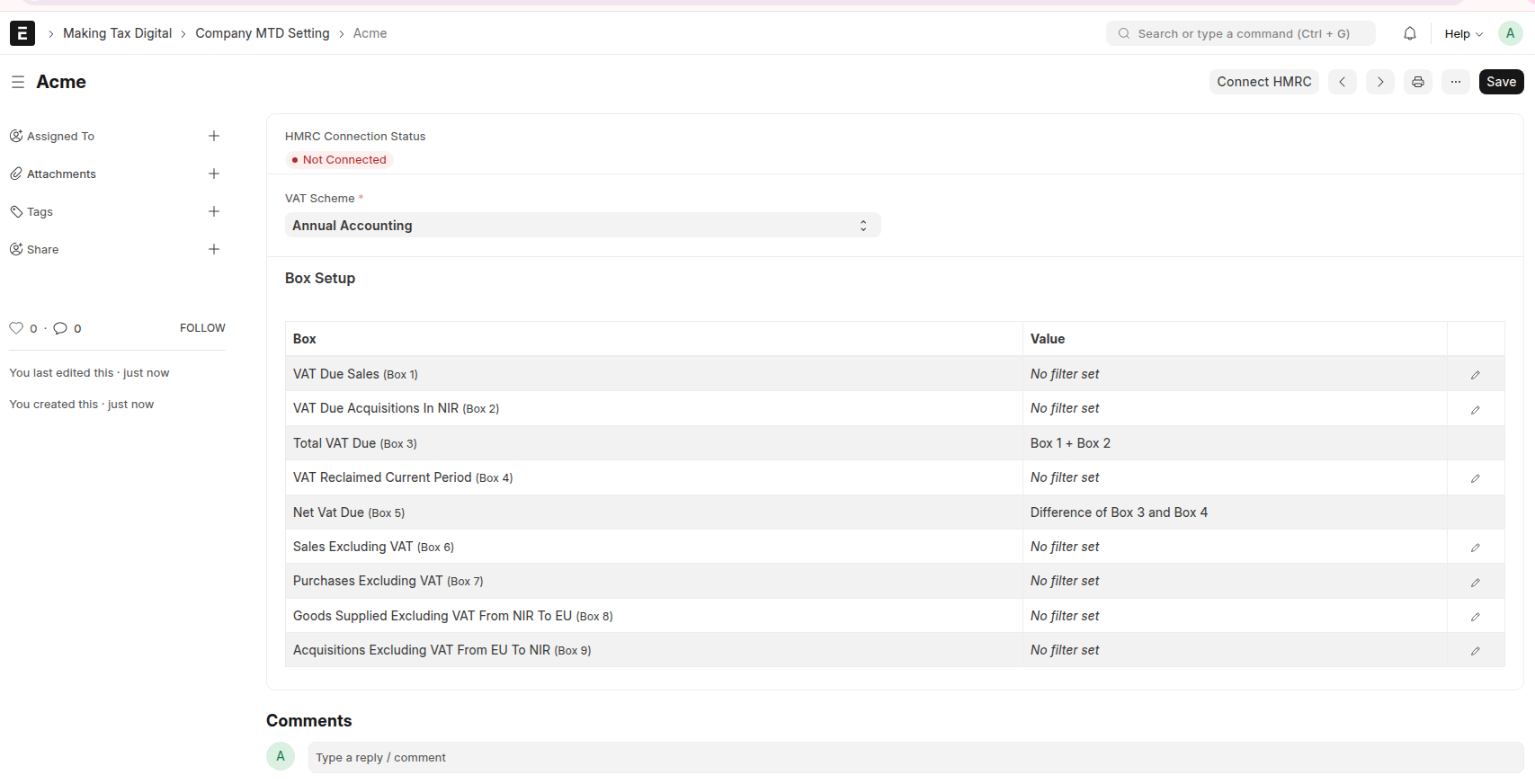
Repeat this step for every company you will file for.
6. Configure box filters
Before you can prepare a return, you must configure box filters.
The walkthrough below uses Box 1 as an example. Repeat the same steps for other boxes except Box 3 and Box 5 as they will be calculated using other box values.
Configure Box 1 (example)
- Open the saved Company MTD Setting for your company.
- In the Box Setup table, click the edit icon on the Box 1 row.
- The MTD Box Setting Report opens with the company and box pre-filled.
- Apply filter values according to your business setup.
- Set a From Date and To Date to preview General Ledger data for a sample period. At the time of actual return generation, this date range will be taken from the date range of HMRC obligation for which return is being prepared.
- Review the hierarchical tree of amounts. Expand rows to drill into accounts and General Ledger entries.
- Tick Show Line Items to see invoice-level detail beneath General Ledger entries.
- When you are satisfied with the filters, click Save Box Filter Setting. You are returned to Company MTD Setting.
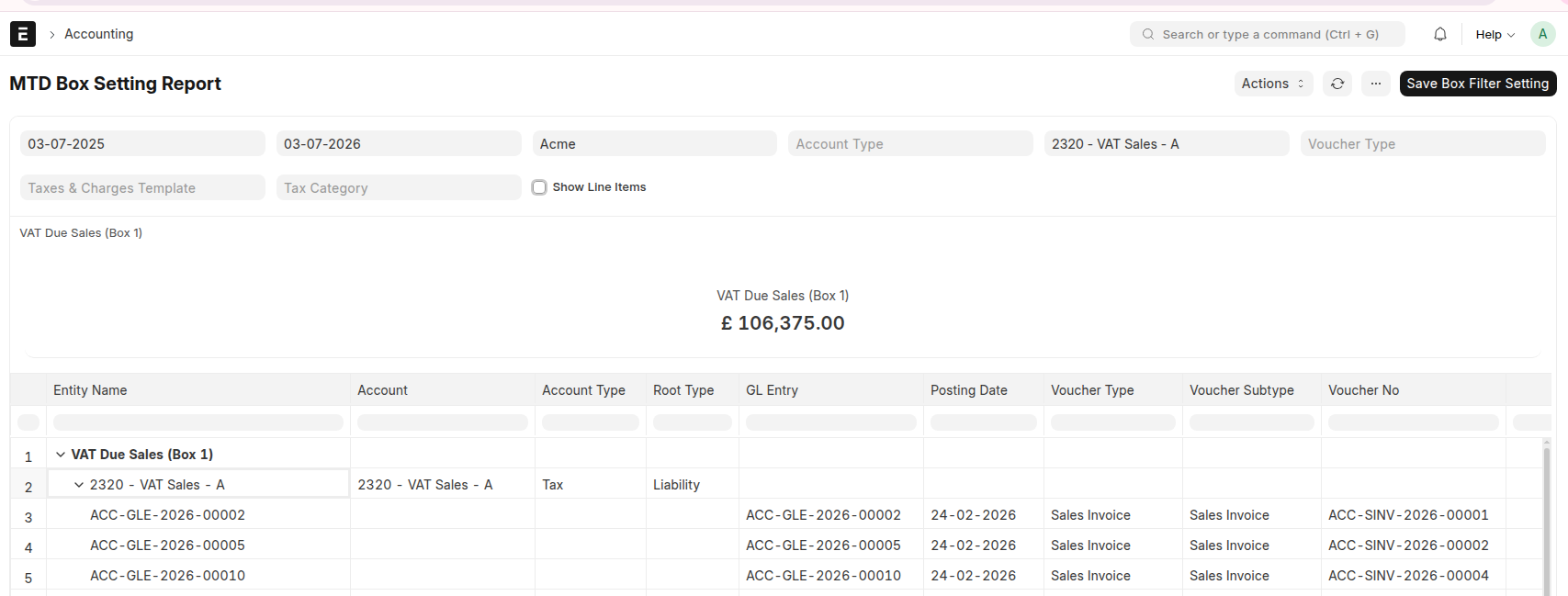
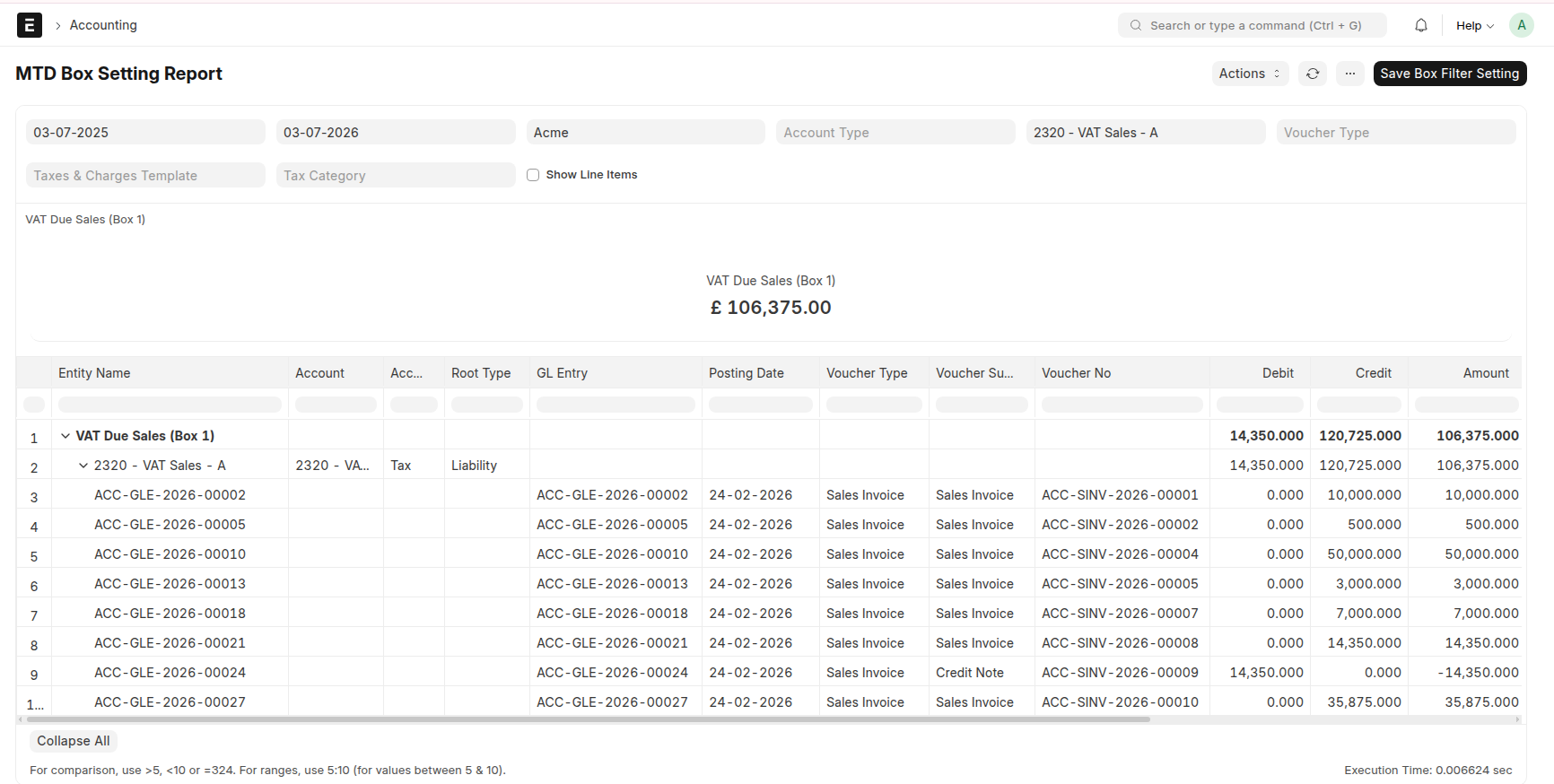
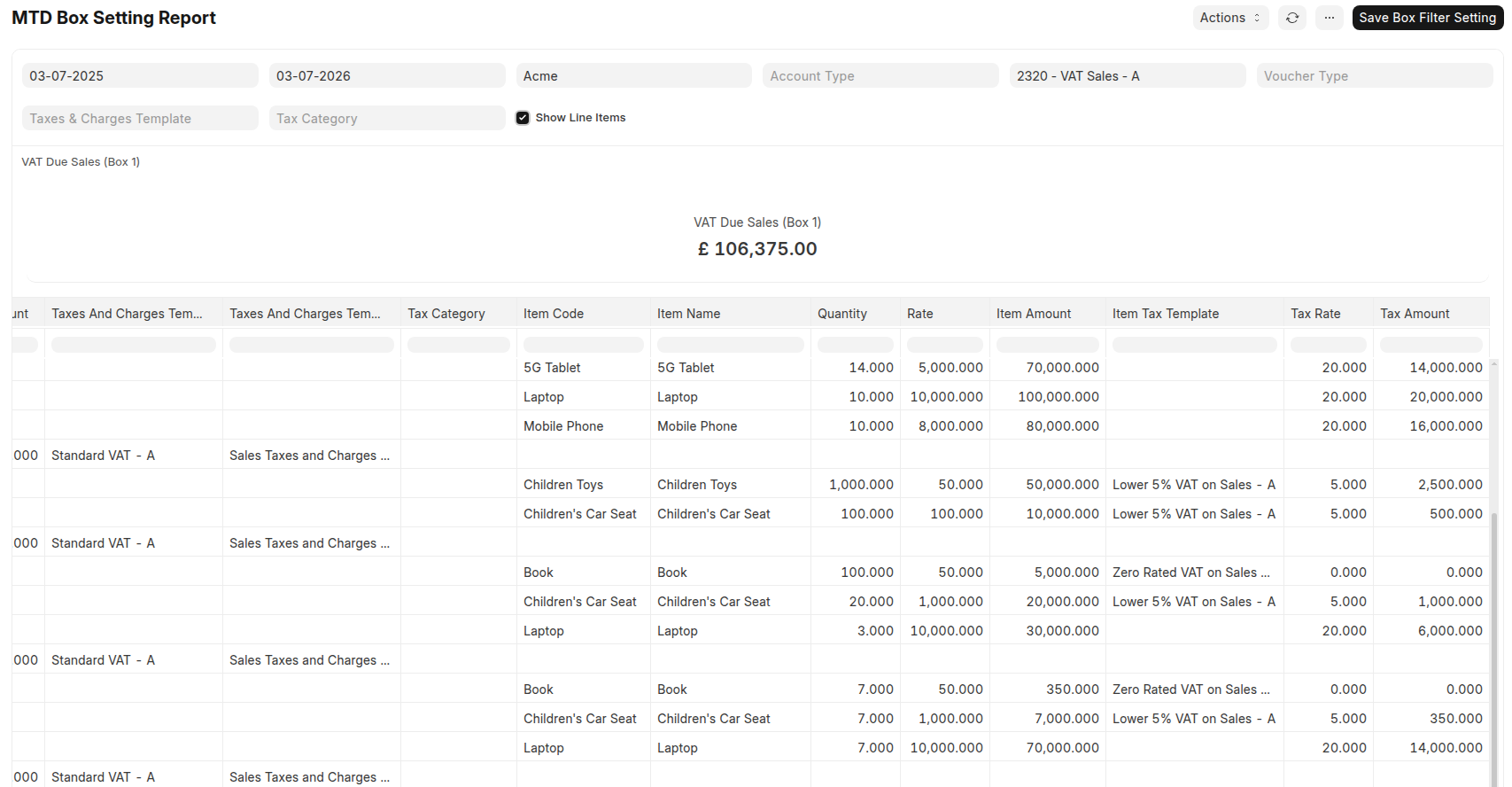
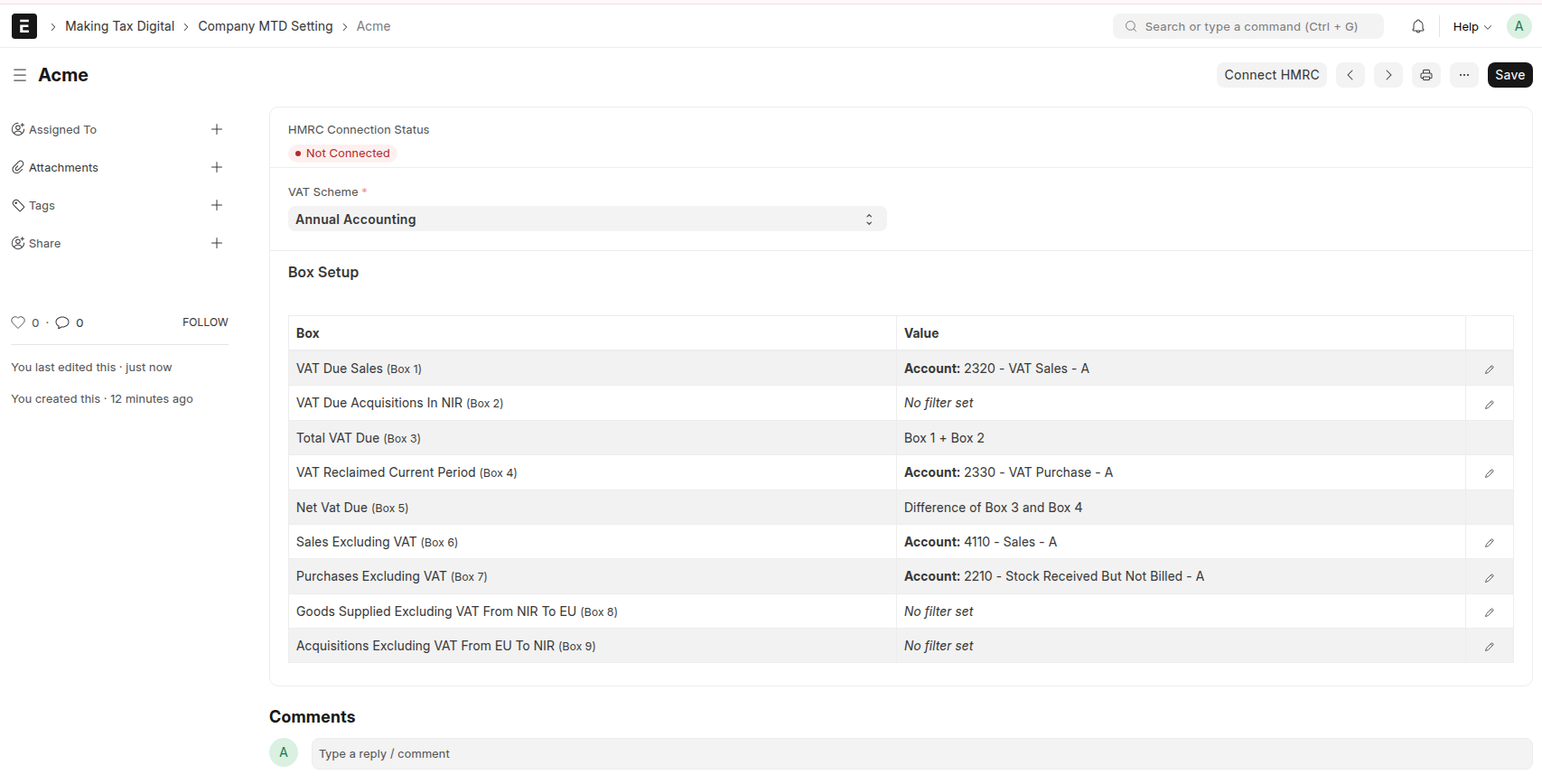
Follow the same process as Box 1 for other boxes except Box 3 and Box 5. Each box has its own filter. Configure them to match how your business records VAT in ERPNext.
7. Connect to HMRC
Each company must be connected to HMRC before you can sync obligations or submit returns.
Before you connect
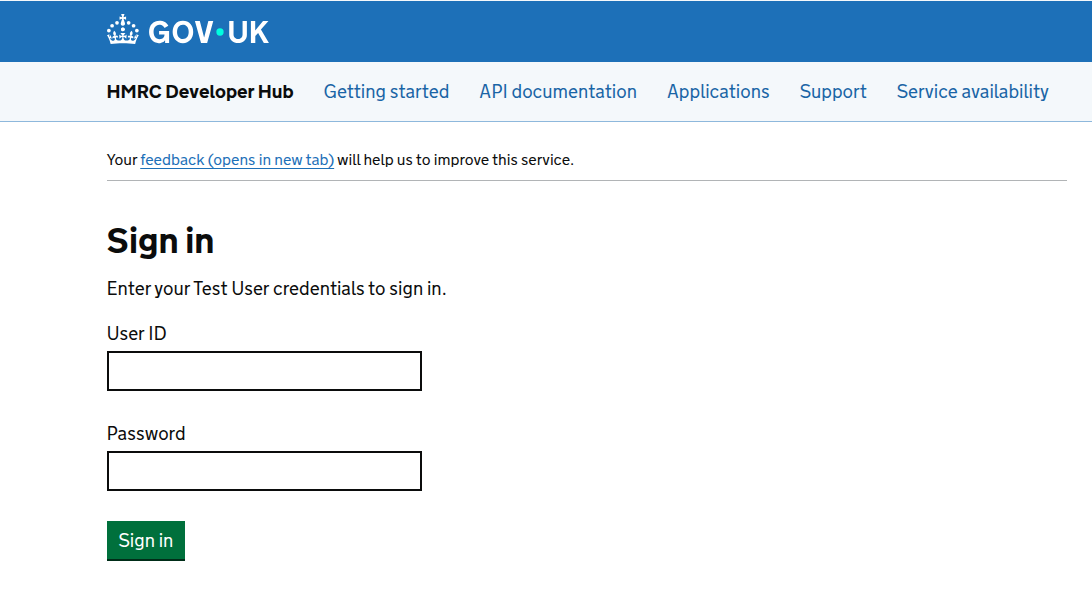
Have the following ready:
- HMRC user ID
- HMRC password
- Your second-factor authentication device, if you have two-factor authentication enabled on your HMRC account
Connect
- Open the saved Company MTD Setting for the company.
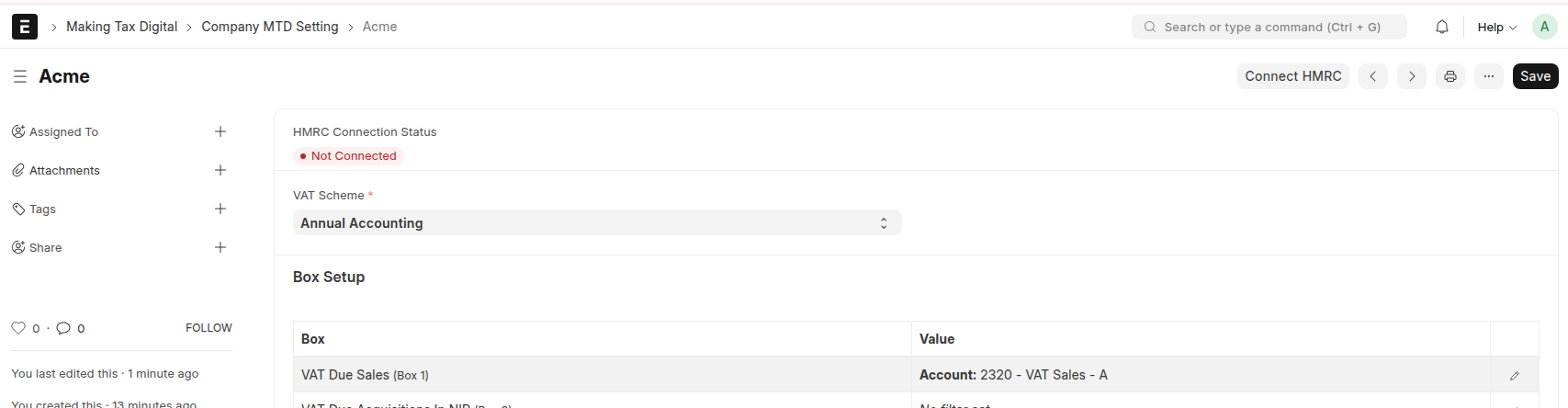
- Check the HMRC Connection Status section. If the company is not yet connected, click Connect to HMRC.
- You are redirected to HMRC to sign in and authorise the connection.
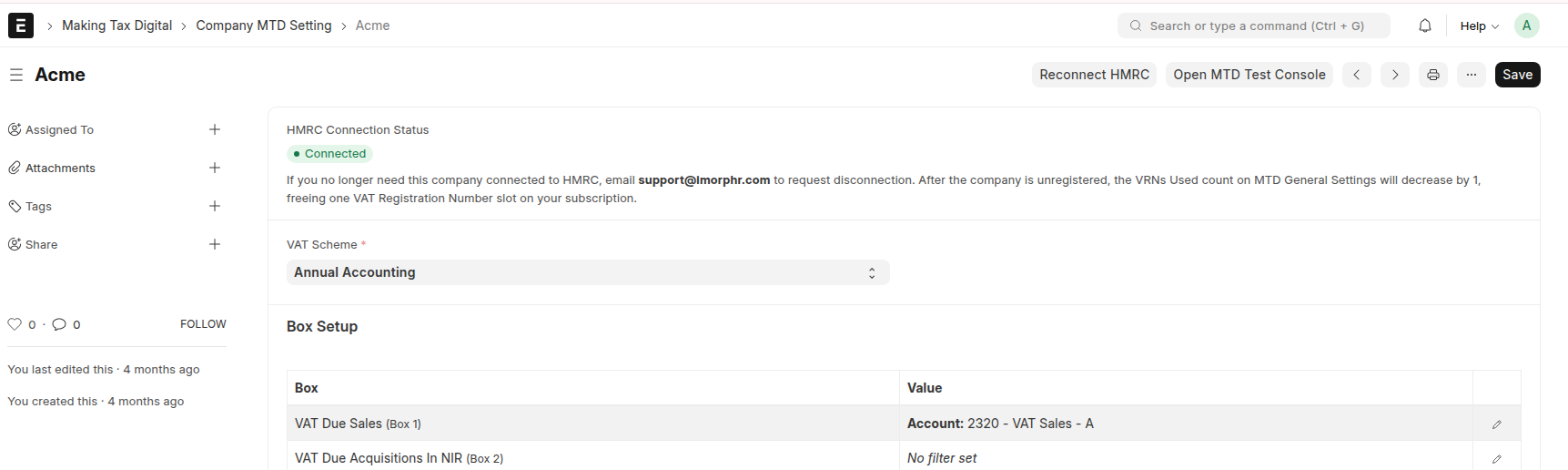
- After authorisation, you are redirected back to Company MTD Setting. The status should show Connected (green).
Disconnect a company from HMRC
There is no disconnect button in the app. To disconnect a company and free one subscription slot, email support@imorphr.com.
8. Sync obligations
HMRC publishes VAT filing periods (obligations) for each connected company. Syncing pulls those obligations into local MTD VAT Return records.
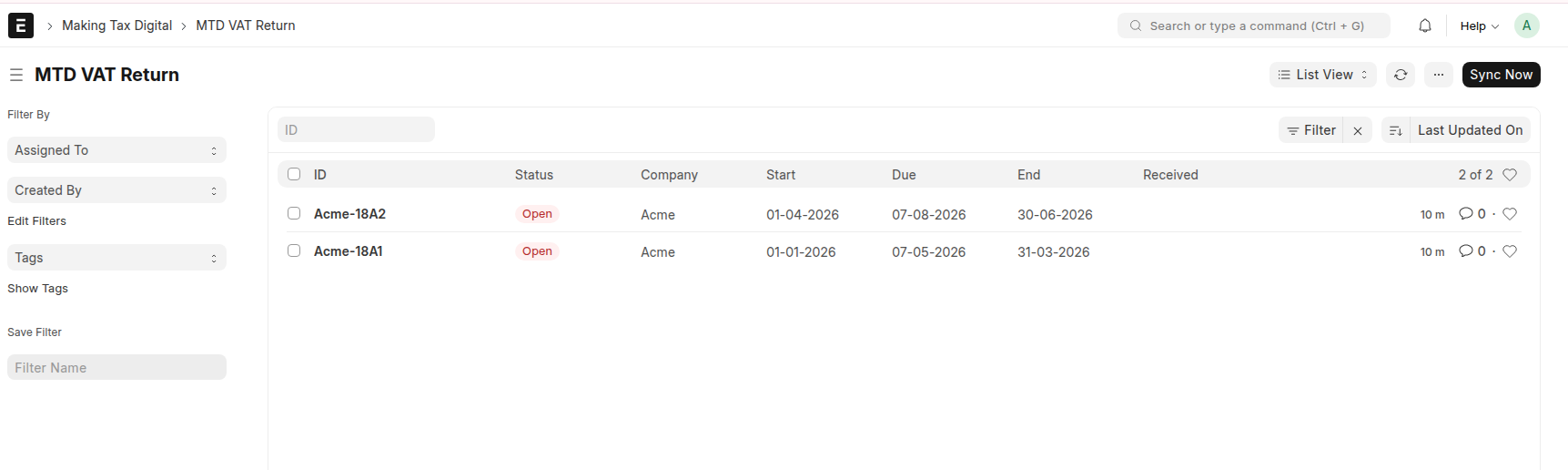
- From the workspace, open VAT Return (the MTD VAT Return list).
- Click Sync Now.
- The app syncs obligations for every company that has a Company MTD Setting record and is connected to HMRC. App will fetch obligations for the number of years configured in MTD General Settings.
- A summary dialog shows which companies were updated.
9. Prepare a VAT return
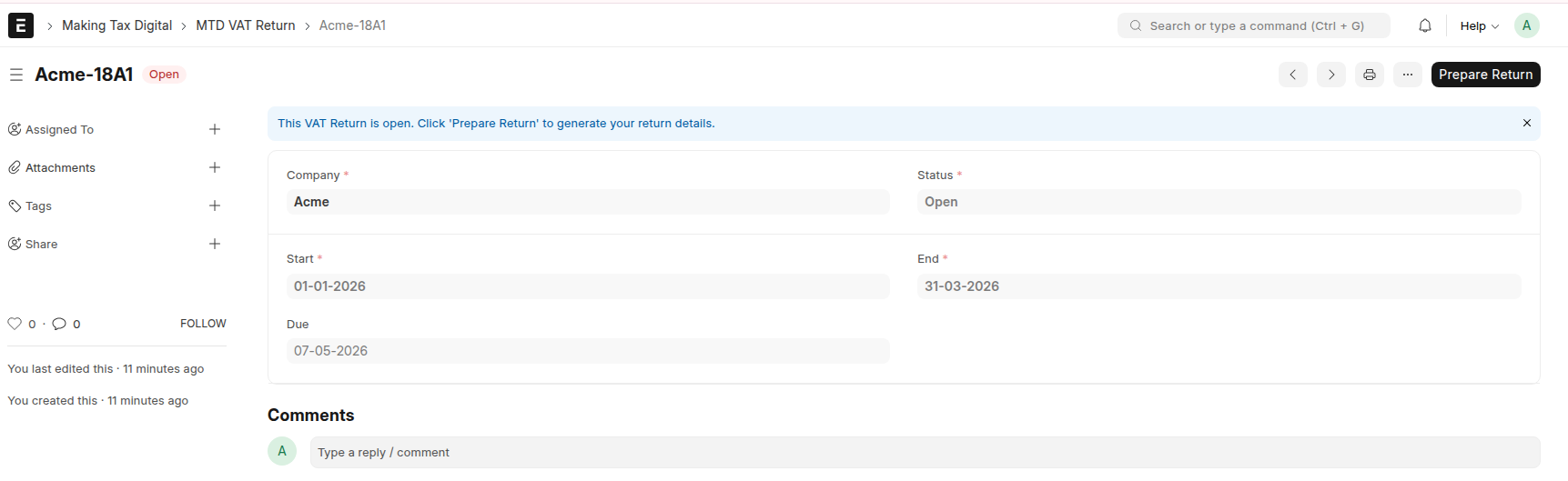
- Open an MTD VAT Return with status Open for the company and period you want to file.
- Confirm the period dates (Start, End, Due) match the obligation from HMRC.
- Click Prepare Return.
- The app queries your General Ledger using the box filters configured (with this obligation’s date range) on Company MTD Setting, calculates all nine box totals, and stores line-level evidence.
- When preparation completes, the status changes to Return Prepared and the nine box amount fields are populated.
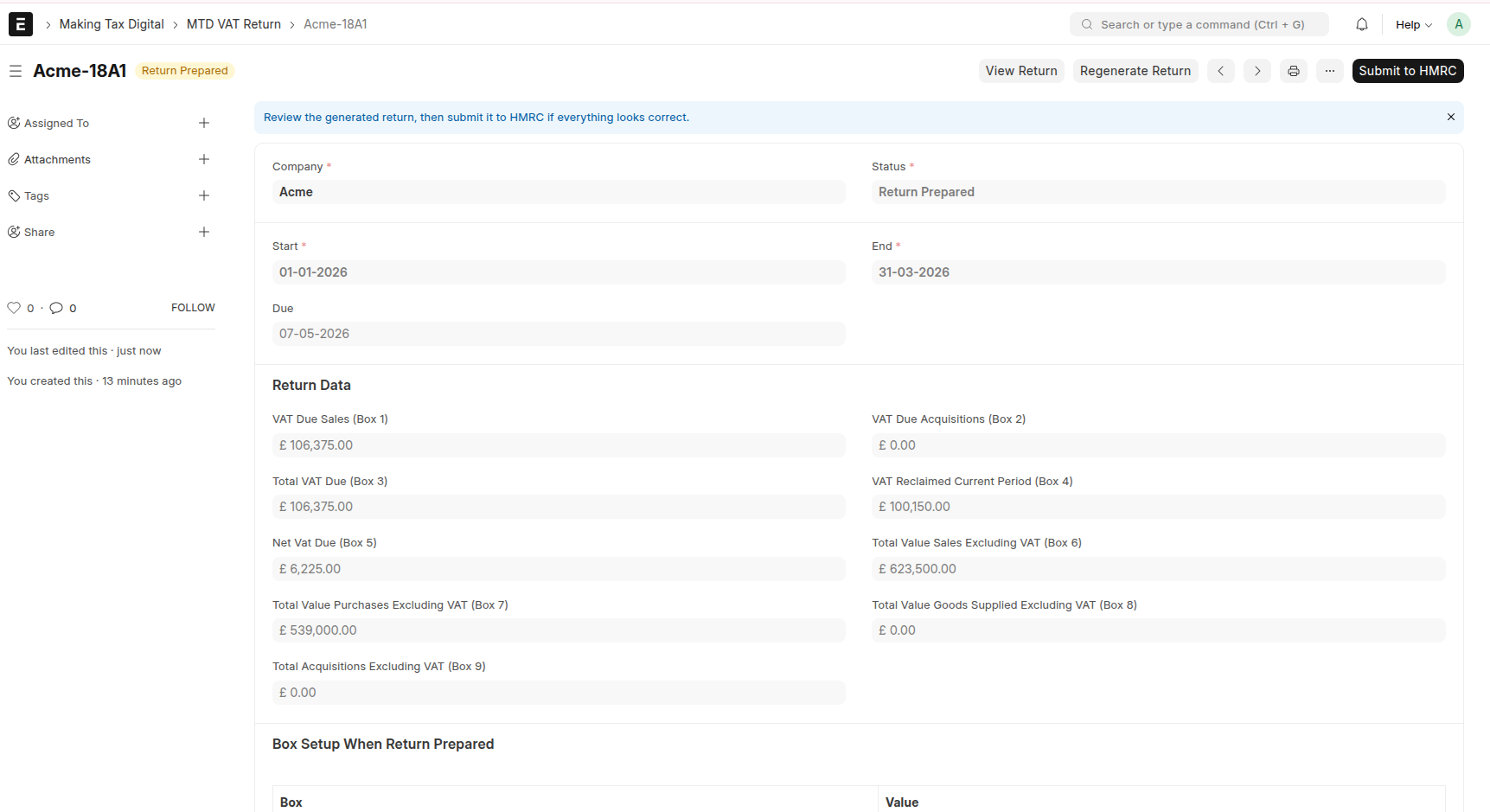
If the return is already Prepared and you need to recalculate, click Regenerate Return. This deletes the previous evidence and recalculates all boxes from scratch.
You cannot prepare or regenerate a return that has already been submitted (Sent To HMRC or Fulfilled).
10. Review before submitting
Always review your return before submitting. Use the MTD VAT Return Report to inspect the evidence behind each box total.
- On a Return Prepared return, click View Return (or View Return as the primary action if the return has already been submitted).
- The MTD VAT Return Report opens with evidence frozen at prepare time.
- Review all boxes, or use the Box Number filter to focus on a single box.
- Expand the tree to drill into accounts and General Ledger entries.
- Tick Show Line Items to see invoice-level lines beneath General Ledger entries.
- Compare box totals and underlying transactions against your expectations.
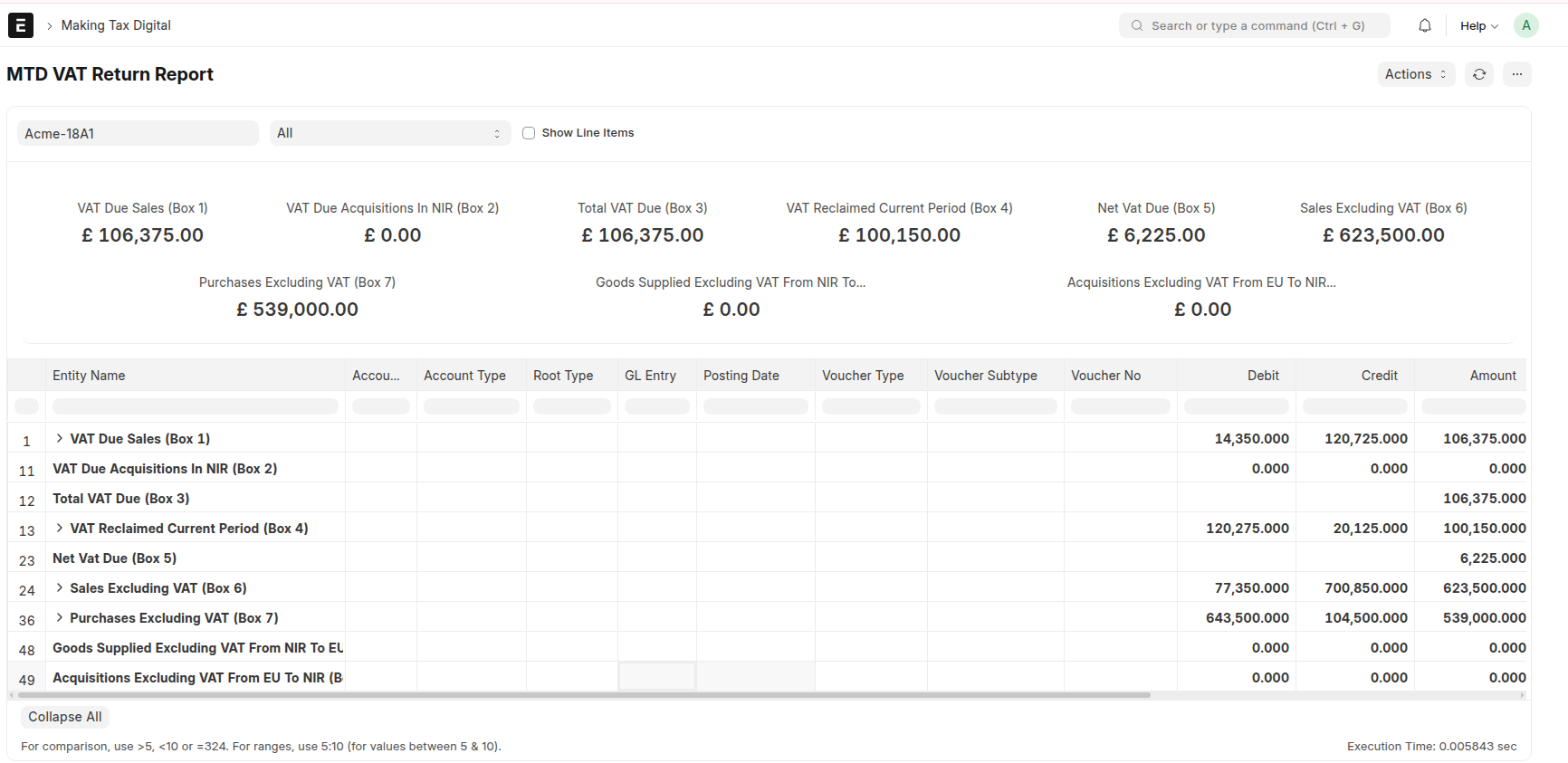
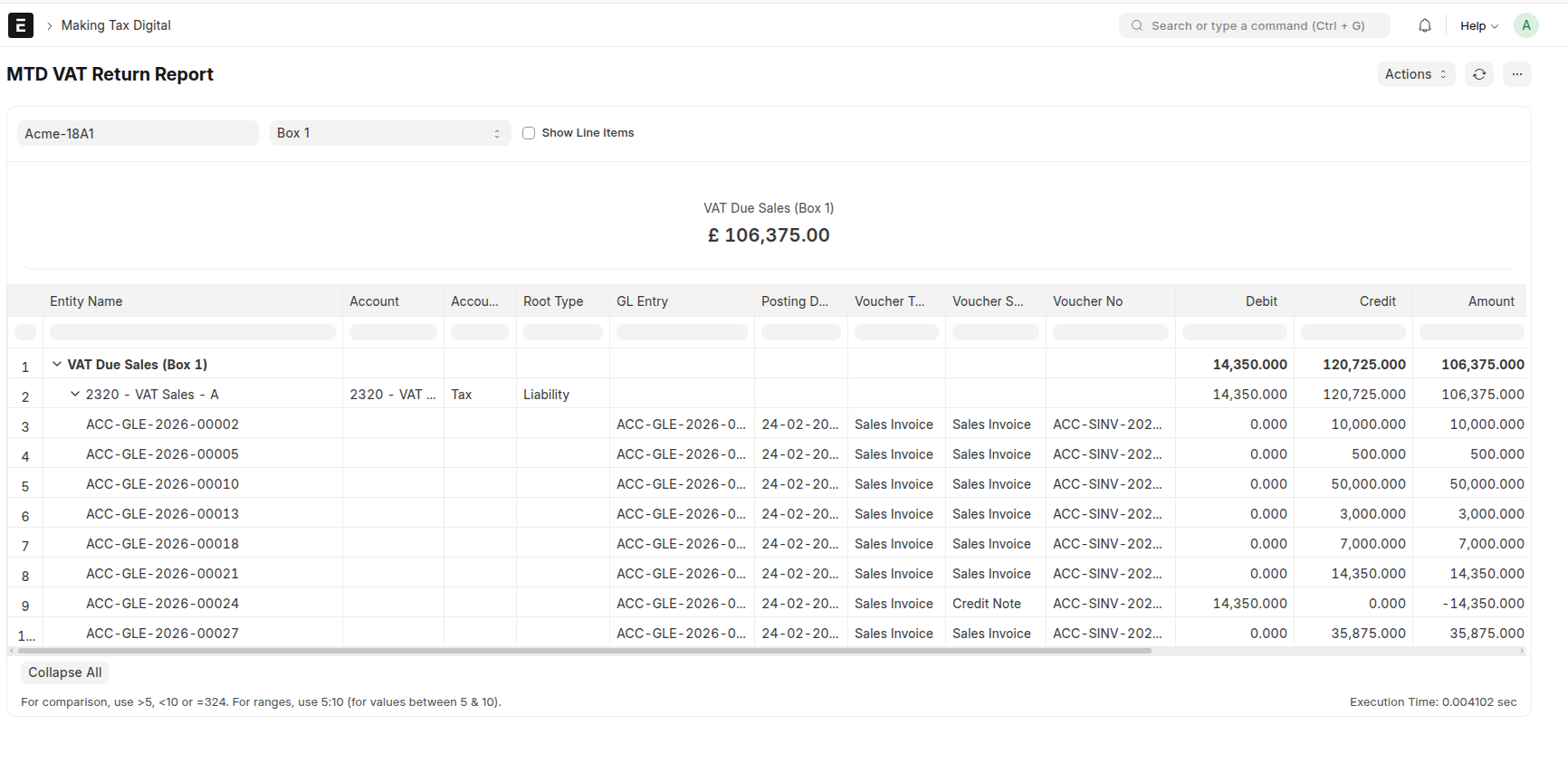
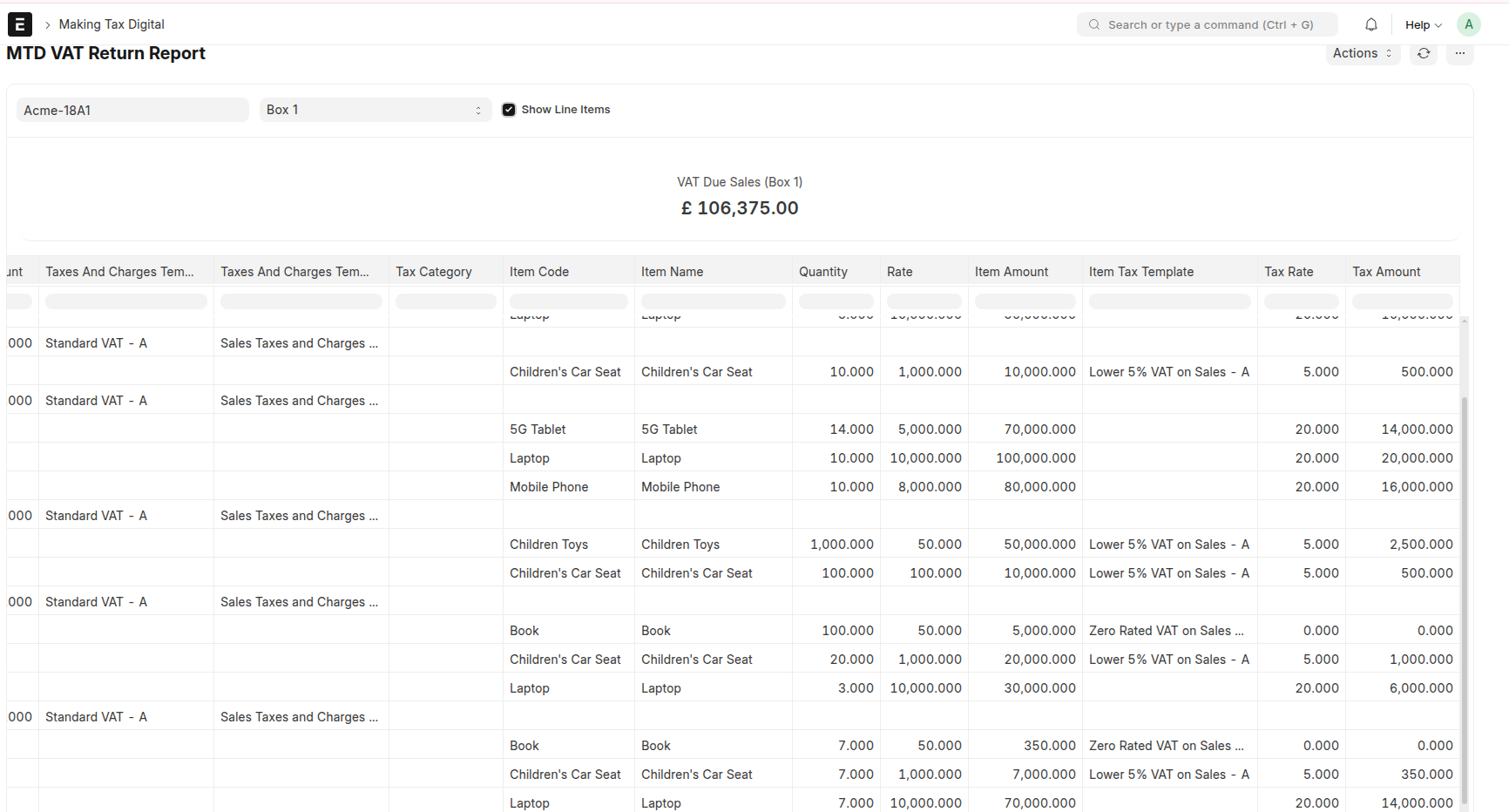
You can also open the MTD Box Setting Report from Company MTD Setting at any time to preview how live General Ledger data would map to a box using your current filters. The return report, however, reflects the evidence captured when you prepared the return.
You can submit return once you are satisfied that the box totals and underlying transactions are correct.
11. Submit to HMRC
When the return status is Return Prepared and you have completed your review:
- Open the MTD VAT Return.
- Click Submit to HMRC.
- When submission succeeds, the status changes to Sent To HMRC.
Remember: submitting the return to HMRC is filing only. You must pay any VAT due to HMRC through your usual payment channels.
12. After submission
Status changes
| When | Status |
|---|---|
| Immediately after successful submission | Sent To HMRC |
| After a later obligation sync, when HMRC marks the period complete | Fulfilled |
Run Sync Now on the MTD VAT Return list periodically after filing to pick up status updates from HMRC.
Submission Receipt
After submission, the Submission Receipt section appears on the MTD VAT Return form. This confirms that HMRC accepted your return.
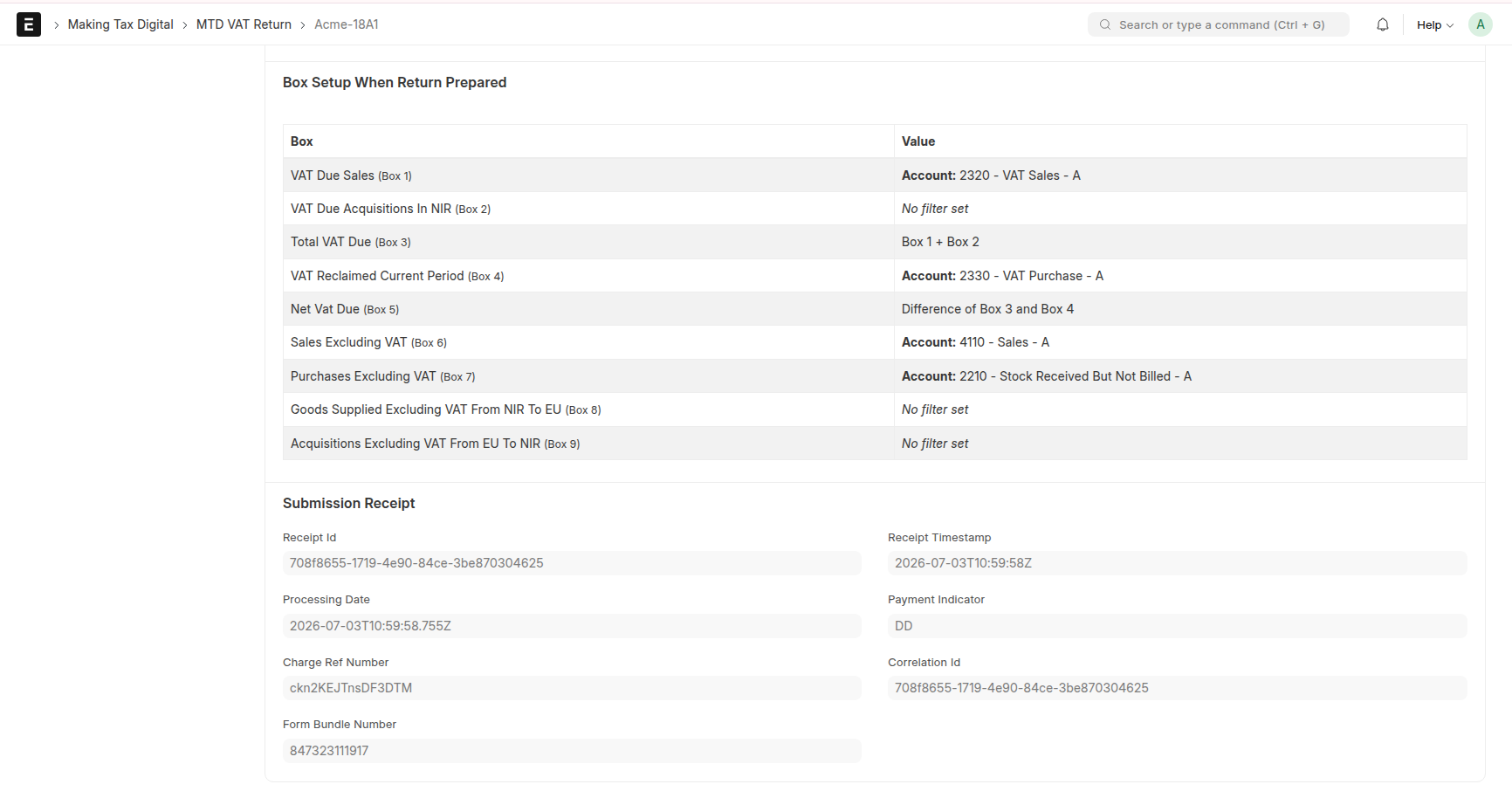
Once submitted, you can only View Return — you cannot prepare, regenerate, or submit again for the same period.
13. Working with multiple companies
| Aspect | How it works |
|---|---|
| Subscription | One MTD General Settings record and one subscription for the entire site |
| Per company | One Company MTD Setting, box filter configuration, and HMRC connection per company |
| Obligation sync | Sync Now processes every company that has a Company MTD Setting record |
| Subscription quantity | Should match the number of VAT Registration Numbers you will connect and file for |
Set up each company independently: create Company MTD Setting, configure box filters, connect to HMRC, then sync and file returns per company.
14. Return status reference
| Status | Meaning | What you can do |
|---|---|---|
| Open | Obligation synced from HMRC; return not yet prepared | Prepare Return |
| Return Prepared | Box totals calculated from General Ledger; evidence stored | Regenerate Return, Submit to HMRC, View Return |
| Sent To HMRC | Return submitted to HMRC; receipt stored | View Return only |
| Fulfilled | HMRC has marked the obligation as fulfilled | View Return only |
15. Checklists
First-time setup
- [ ] Confirm you have the System Manager role
- [ ] Enter each company’s VAT Registration Number in the Tax ID field on the Company document
- [ ] Subscribe on MTD General Settings (quantity = number of companies / VAT Registration Numbers)
- [ ] Create a Company MTD Setting for each company
- [ ] Configure box filters for each company
- [ ] Connect to HMRC for each company
- [ ] Run Sync Now on the MTD VAT Return list
Per-return filing
- [ ] Post all transactions for the return period in ERPNext
- [ ] Run Sync Now to ensure the latest obligation is present
- [ ] Open the correct MTD VAT Return for the company and period
- [ ] Click Prepare Return
- [ ] Review totals and evidence using View Return (MTD VAT Return Report)
- [ ] Use Show Line Items to verify invoice-level detail where needed
- [ ] Click Submit to HMRC
- [ ] Confirm status is Sent To HMRC and the Submission Receipt section is visible
- [ ] Arrange VAT payment to HMRC separately if amount is due
- [ ] Run Sync Now later to check for Fulfilled status
16. Support
For help with subscription plans, increasing the number of VAT Registration Numbers on your plan, or disconnecting a company from HMRC, contact support@imorphr.com or visit www.imorphr.com.
Making Tax Digital — User Guide